
How to export Trello to CSV
Move Trello card data into spreadsheets and other tools.
Choose CSV for a portable table you can open in Excel or Google Sheets, or import into tools that accept rows and columns. CSV is plain text and does not preserve workbook styling or nested relationships.
Before you start
Install Board Export+ on a Trello board you can access. All supported formats are available during the 14-day Pro trial. Afterward, formats other than JSON require Pro. Check current pricing and Free limits.
Export steps
- Open Board Export+ from your board, list, or card.
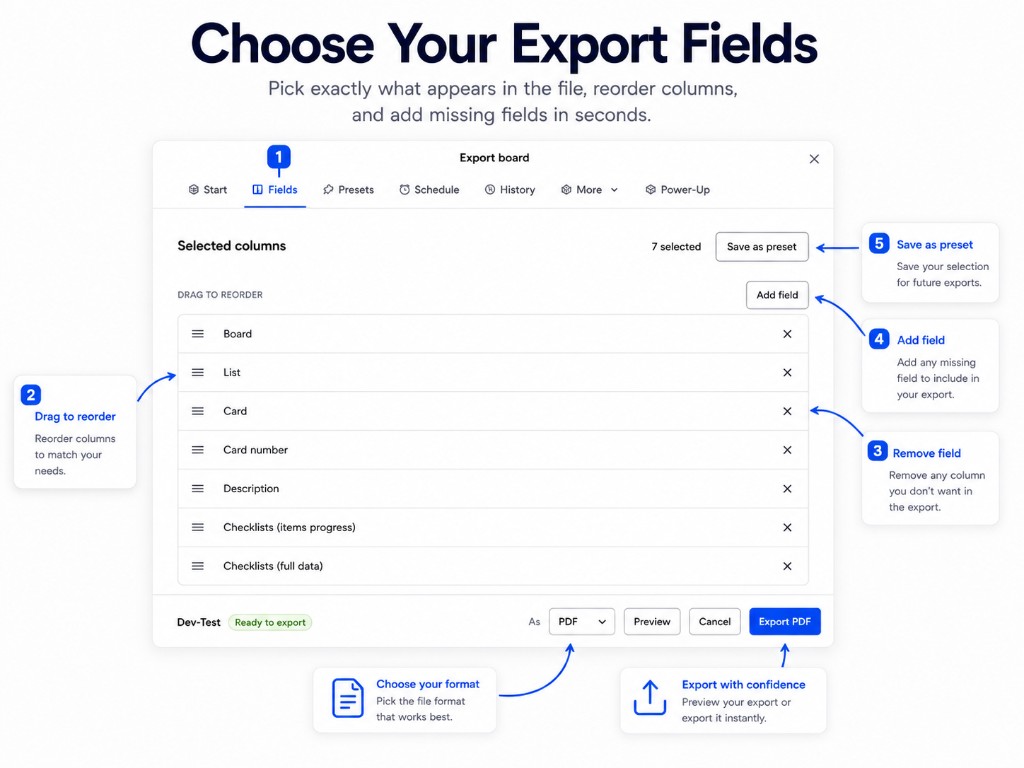
- Choose the lists, fields and filters for this export. Order columns as needed.
- Select CSV in the format selector.
- Use Preview to check the selected content and layout.
- Select Export and download the file. If the job runs in the background, wait for its completed status in History.
- Save a preset if you plan to repeat this export.
Check the selected field order before importing the CSV into another tool. Use JSON when you need nested data.
More help
Open the detailed visual guide for controls, presets, history and scheduled delivery. The existing complete export article explains format tradeoffs in more depth.
Export Trello to Excel
Analyze Trello cards in a native Excel workbook.
Export Trello to CSV
Move Trello card data into spreadsheets and other tools.
Export Trello to PDF
Share a readable Trello report with clients and teammates.
Export Trello to JSON
Keep a structured snapshot of Trello data.
Export Trello to Word, PNG and ZIP
Create documents, images, or attachment packages from Trello.